
PROVENANCE STUDIO
Write it first. Hook it second. Then take the machine out.
Most AI writing tools work like this: generate something, publish it, hope nobody notices. Provenance Studio works the other way round.
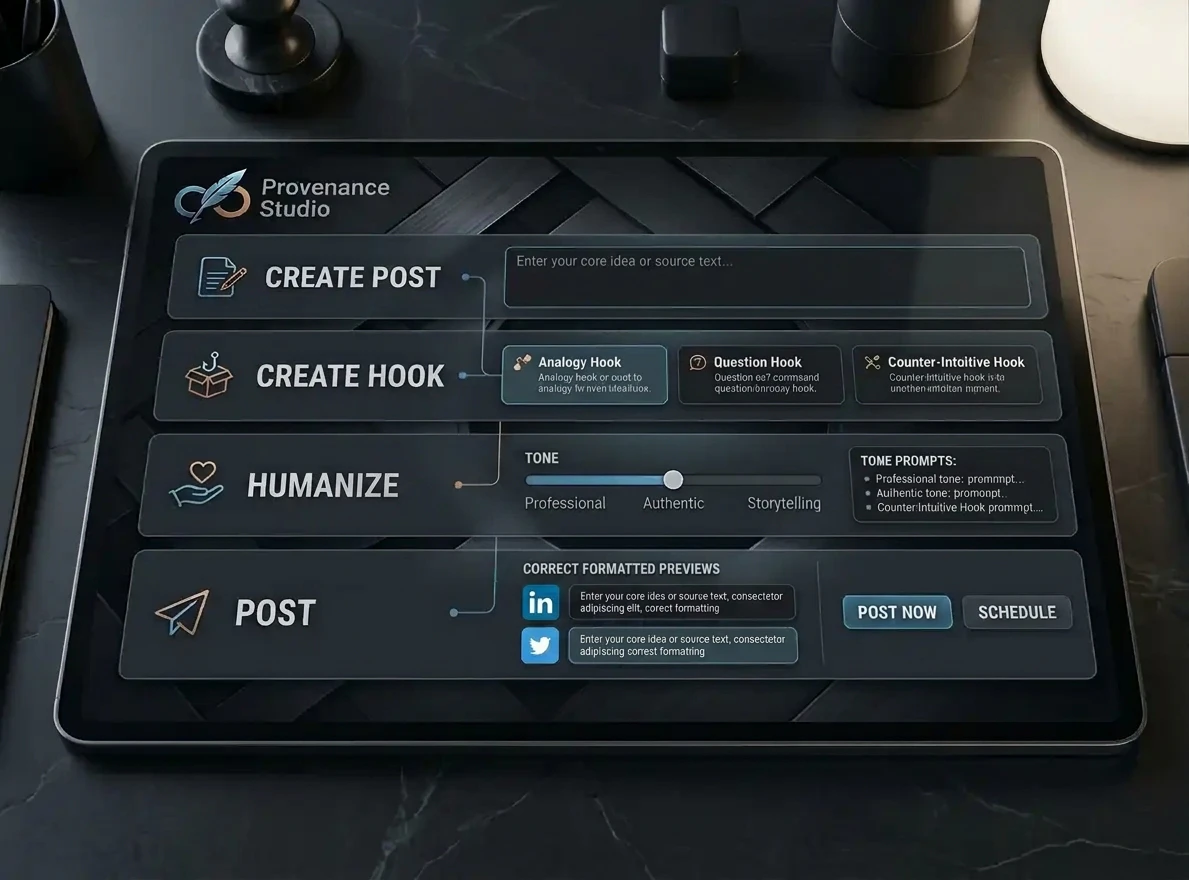
You give it the real facts. It writes the post from those facts and nothing else. Then it finds the hook or the title inside what it actually wrote, rather than inventing a clever opening and hoping the post lives up to it. Finally, it runs a Humaniser pass that strips out the habits that make AI writing obvious: the inflated vocabulary, the hollow conclusions, the em dashes, the rule-of-three padding.
It does LinkedIn posts and blog posts.
WHAT’S INSIDE
– Blog titles and descriptions measured in pixels, the way Google actually truncates them, not in characters.
– A Humaniser pass based on Siqi Chen’s Humaniser skill (MIT licence, 2025), working through 19 documented AI writing patterns in three passes: draft, audit, final.
– LinkedIn hooks written with Diandra Escobar’s hook-writing method, and measured against the point where LinkedIn cuts your post off on a phone.
– Checks done in code rather than requested politely: em dashes, banned phrases, percentages with no base number, and hedges that quietly went missing. If you wrote “about 40%”, it notices when the “about” disappears.
You can edit at every stage. It is a writing assistant, NOT a replacement for reading your own post. Trust me on this.
Built by 15DegreesNorth. Free to download. It runs on your own Claude account.
WHAT YOU NEED
A Claude account on a paid plan, Pro or above. The tool uses your own Claude allowance, not mine.
HOW TO SET IT UP (TWO MINUTES)
1. Download the provenance-studio.zip file. Unzip it. You will have one file inside the zip: provenance-studio.html
2. Open a new chat in Claude.
3. Attach provenance-studio.html to the chat and send this comment, exactly:
Publish this HTML file as an artifact exactly as it is, without changing anything. Declare the sample capability so it can use Claude, then open it.
4. Claude publishes it as your own private copy and opens it.
5. The first time you use it, it asks to use your Claude account. Allow it.
That’s it. You can find it again any time in your list of artifacts.
HOW TO USE IT
1. Choose LinkedIn post or Blog post at the top.
2. Fill in the first box: what you want to write about. The other boxes are optional, but the more real facts you give it, the better the post. It does not make facts up, so it can only be as good as what you put in.
3. Press Write the post (or Build the outline for a blog). Edit the result as much as you like.
4. Press Find the hooks (or Find titles). Pick one, or type your own.
5. Press Finish & Humanise it. The box marked “What changed, checked in code” shows you every sentence it touched, so nothing changes behind your back.
THREE THINGS NOT TO DO
– Don’t double-click the file. It only works once Claude has published it.
– Don’t paste the file into a chat. Attach it.
– Don’t ask Claude to “render” it. Ask it to “publish” it. Render means Claude retypes the whole thing, and that is how mistakes get in.
Mark.
